What is Sound Programming?#
In this section, you will learn what it means to create sound using programs and calculations with mimium.
Creating a 440Hz Sine Wave#
- First, create a file named
hello.mmm. - Paste the following snippet into the file and save it.
use osc::*
fn dsp(){
  sinwave(440,0)
}
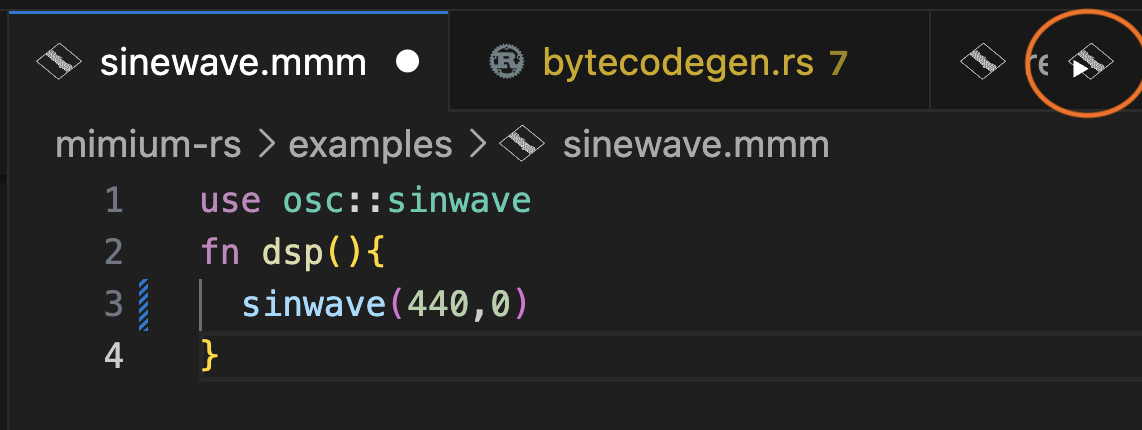
Click the play button in the upper right corner of the VSCode file tab to execute the file and hear a 440Hz sine wave (pure tone). Press Enter to stop playback.
What is Happening Here?#
In mimium, and in computer audio in general, sound is represented as a sequence of numbers. These numbers are converted into voltage 48,000 times per second, controlling the speaker’s movement to produce vibrations that reach our ears.
In mimium, you define a function named dsp to determine the waveform sent to the audio output. The range of output values (i.e., volume) is between -1 and 1.
Let’s observe the waveform being sent to the audio driver. Add the following to the previous code:
use osc::*

fn dsp(){
  Probe!("test")(sinwave(440,0))
}
When you run this code, a new oscilloscope window will open during execution.
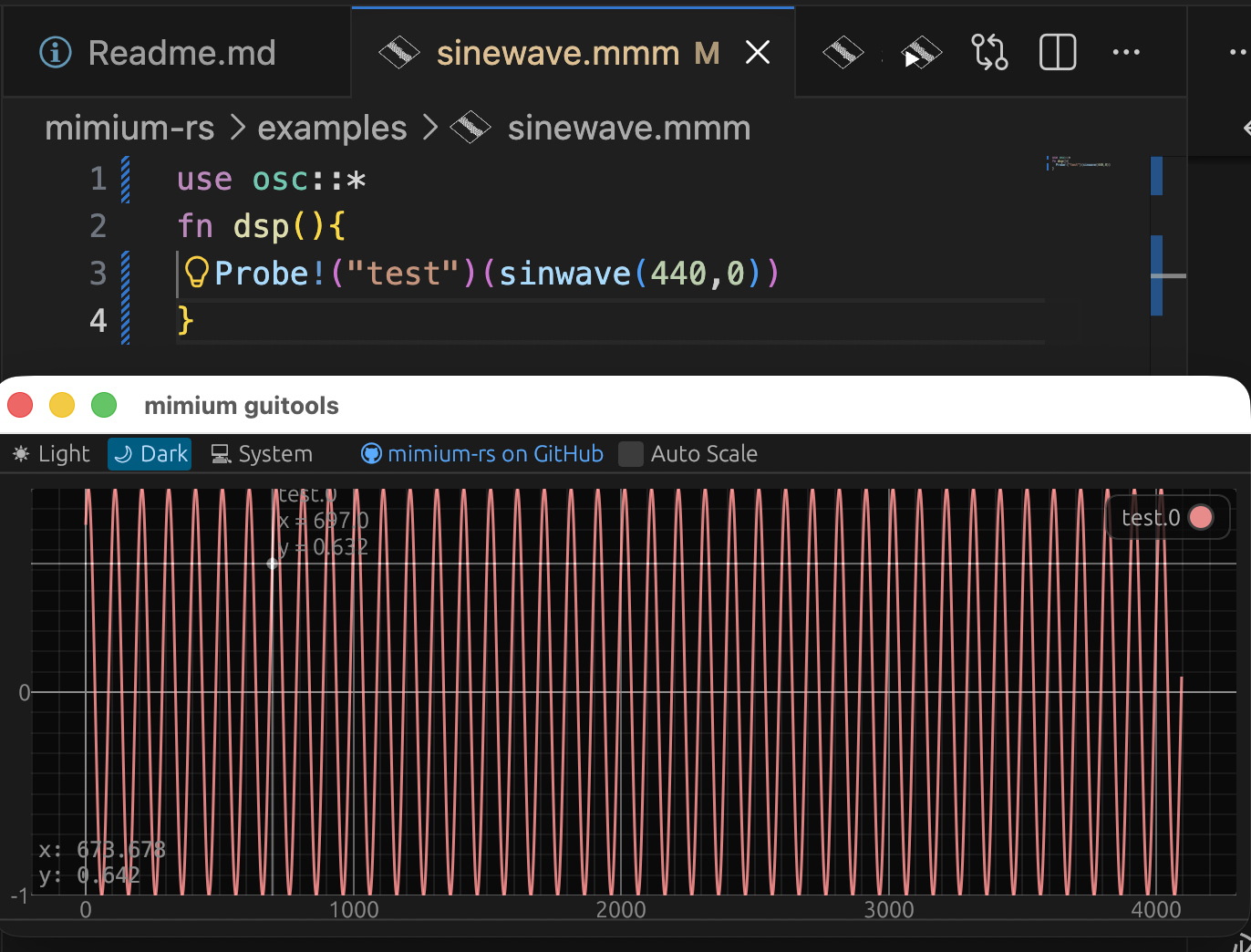
Running Probe! returns a new function for sending values to the GUI. The generated function sends the input value to the GUI and returns the same value.
mimium supports the pipe operator |> to apply functions in a readable way. The following code is equivalent:
use osc::*

fn dsp(){
    sinwave(440,0)
        |> Probe!("test")
}
Stereo Playback#
The previous dsp function returned a single value. To output stereo signals, return multiple values as a tuple. Let’s change the right channel to 300Hz:
use osc::*
fn dsp(){
  let left = sinwave(440,0)
  let right = sinwave(300,0)
  (left,right) |> Probe!("out")
}
The part (left,right) returns the values as a tuple.
Because Probe is generic, if you pass a tuple it will display multiple graphs in the GUI.
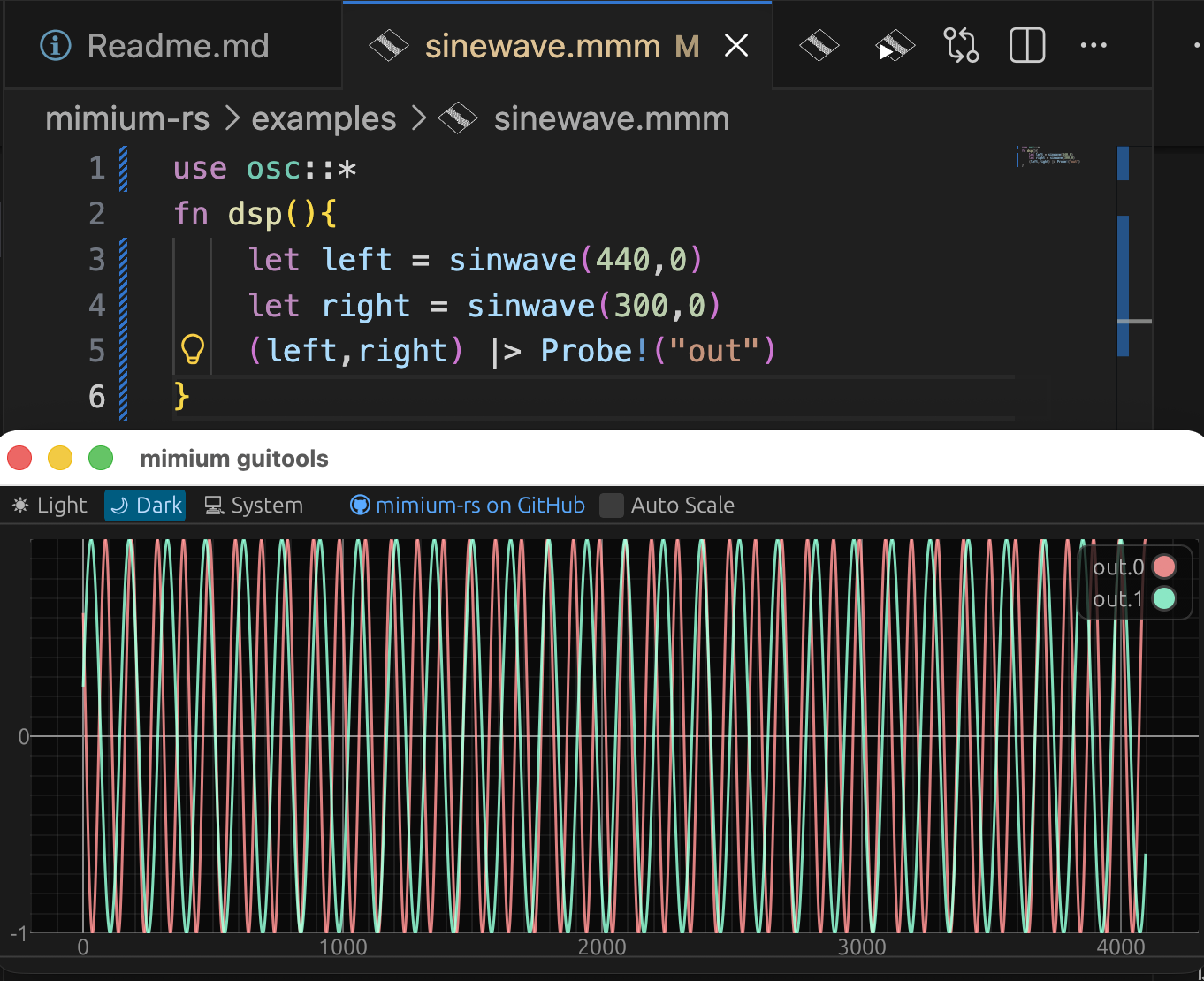
If you are using headphones, you should hear a lower sound from the right channel compared to the left.
Frequency and Pitch#
The values 440 and 300 are frequencies, representing how many times per second the air vibrates. 440Hz means the speaker moves back and forth 440 times per second. This corresponds to the musical note A4.
You can also modify this frequency with calculations:
use osc::*

fn dsp(){
  let freq = 440 * (sinwave(1,0)+2)
  sinwave(freq,0)
      |> Probe!("test")
}
In this code, the frequency of 440Hz is modulated by a 1Hz sine wave, ranging from 440Hz to 1320Hz.
With underscore partial application and macro pipe ||>, you can also write this without binding freq:
use osc::*
fn dsp(){
  440 * (sinwave(1,0)+2)
  ||> sinwave(_,0)
  |> Probe!("test")
}
Volume Control#
The range of values sent to the audio driver is -1 to 1. If you continuously send 0, the speaker will produce silence.
To reduce the volume by half, multiply the output by 0.5. (Note: reducing the waveform amplitude by half does not necessarily mean the perceived volume is halved.)
use osc::*

fn dsp(){
  440 * (sinwave(1.0,0.0)+2.0)
  ||> sinwave(_,0.0) * 0.5
      |> Probe!("test")
}
You can also modulate the volume with a sine wave, creating a tremolo effect:
use osc::*

fn dsp(){
  let freq = 440 * (sinwave(1.0,0.0)+2.0)
  let gain = (sinwave(10,0.0)+1.0)/2.0
  sinwave(freq,0.0) * gain
    |> Probe!("test")
}
You should see the waveform change according to the volume curve.
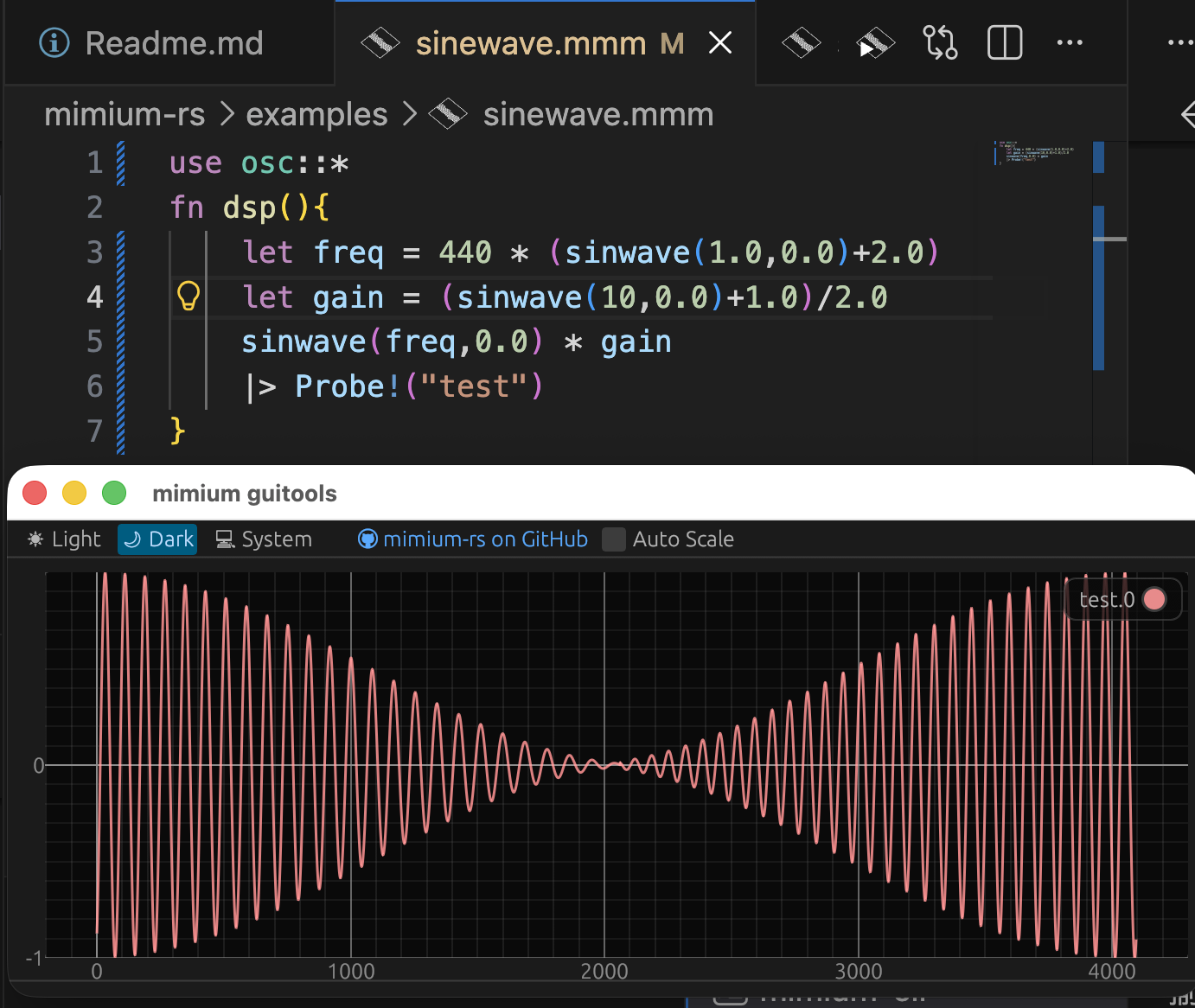
As you increase the tremolo frequency from 3Hz to around 20Hz, the volume changes will sound like a low pitch. This is because 20Hz is the lowest frequency humans perceive as sound.
Effects achieved by multiplying waveforms above 20Hz are called ring modulation (RM) or amplitude modulation (AM). Similarly, effects that rapidly change frequency are known as frequency modulation (FM).